Wednesday, 13 March 2013

Problems starting the OPMN Essbase windows service after changing the Log On account

Back with another quick blog that was inspired from a post on the OTN forum, the poster raised an issue when changing the account to manage the OPMN windows service.

The issue relates to starting the Essbase OPMN service but I believe it is valid for any of the 11.1.2.x EPM OPMN services.

After the initial configuration of Essbase an OPMN windows service will be created and set to be controlled by the Local System account.


Say you change the Log On account for the service to different account to the one that configured Essbase,  the issue will not occur if it is the user that configured Essbase which I will explain why shortly.


Attempting to start the service should now fail with the standard timeout message.


The first place to look if any OPMN type issues occur for Essbase is logs located at
<MIDDLEWARE_HOME>\user_projects\<instancename>\diagnostics\logs\OPMN\opmn

As the OPMN process did not start then the log to check first is opmn.log and it should reveal the following information:

[opmn] [ERROR:1] [] [ons-secure] Failed to open wallet (file:E:\Oracle\Middleware\user_projects\essbase\config\OPMN\opmn\wallet) [default password] (28759)

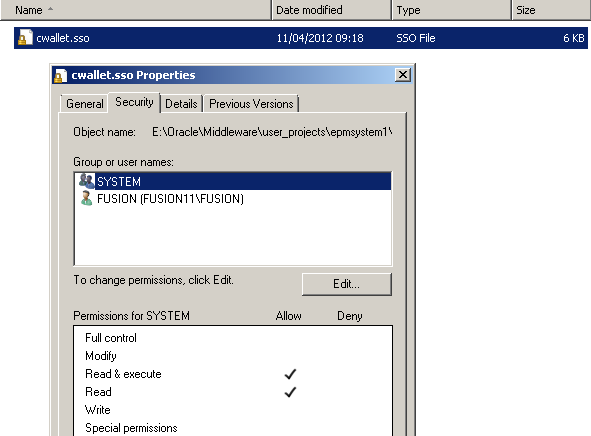
When OPMN starts it attempts to access the Oracle wallet file cwallet.sso in the above location and fails, so why does it fail well if you check the security properties of the file you will see.
 

The only accounts that have access to the file are the SYSTEM user and the user that originally configured Essbase which in my case is FUSION so the user that I configured to start the OPMN service will not have access to the file which ends up causing the failure.
 

The simple solution is to add the account with read permissions to the wallet file.

[opmn] [NOTIFICATION:1] [90] [ons-internal] ONS server initiated
[opmn] [TRACE:1] [522] [pm-internal] PM state directory exists: E:\Oracle\Middleware\user_projects\epmsystem1\config\OPMN\opmn\states
[opmn] [NOTIFICATION:1] [675] [pm-internal] OPMN server ready. Request handling enabled
[opmn] [NOTIFICATION:1] [667] [pm-requests] Request 2 Started. Command: /start
[opmn] [NOTIFICATION:1] [662] [pm-process] Starting Process: Essbase1~EssbaseAgent~AGENT~1 (528287129:0)
[opmn] [NOTIFICATION:1] [665] [pm-process] Process Alive: Essbase1~EssbaseAgent~AGENT~1 (528287129:2768)
[opmn] [NOTIFICATION:1] [668] [pm-requests] Request 2 Completed. Command: /start

The OPMN service should now start without any problems.

Thursday, 28 February 2013

Financial Reporting Studio firewall fun

Another quick blog from me, I was recently working on an 11.1.2.2 windows environment build with a customer who had a strict policy to enable the windows firewall between servers and the users accessing the system, I have never really had much dealings with firewalls as I have been lucky enough to work with internal networks which have been firewall free.

I had no issues with the server to server communication and the users were mainly accessing the system through the web using OHS on port 19000 and the Excel addin (it still lives on), these also proved to be no problem on the firewall front.

There were a number of power users who were also report building with the Financial Reporting Studio, now Financial Reporting has never been a friend of mine and it is has been designed to give me grief.

If you have ever configured a firewall for Financial Reporting Studio then this will probably be no interest for you and you can have a nice cup of tea and devote your time to a different blog :)

I stupidly though that by now in the 11.1.2.2 world that the FR studio will just go through the http server port 19000 and all will be good but no it still seems it living with its looks in prehistoric times.

Anyway, port 19000 was already opened to allow inbound traffic to the web server.


Ok, time to log into the Financial Reporting Studio on a client machine.


Now if you have never seen the above message before you have never used FR Studio, it basically means some sort of problem exists and you are going to have to spend time trying to work it out what because there seems to have been no investment in all these years FR studio has existed in error trapping and messaging.

I have lost count of the amount of times I have seen this message be posted on forums and if you search for the message in Oracle Support you will be inundated with articles.

A quick look at the “Oracle Enterprise Performance Management System Communication Flows” spreadsheet reveals the following:


So the Studio does not just communicate directly with the HTTP server and also requires the RMI default ports of 8205-8209 opening.


The RMI ports are added to the firewall rules so time to try again.


The login was successful so case closed; come on this is FR studio we are talking about life is not so simple…
Opening a report produced:


The communication flow document did not highlight any additional ports for the Studio use but obviously it does use some.

A Wireshark trace highlighted:


 The FR Studio was communicating on a dynamic port.


I referred to the ports section of “Oracle Enterprise Performance Management System Installation Start Here” and it contained more information than the flows spreadsheet by specifying that FR also uses an ADM server with dynamic ports which can be configured in a propertiesd file.

I always incorrectly thought the ADM communication was internal but apparently not though why does it need to be dynamic?
 

Just when you think that most of the properties have been moved to the Shared Services registry you find out there are more file based ones out there.

As you can see there is commented out parameter ADM_RMI_SERVER which must mean that it takes the default value or 0 and a dynamic port range.


I set the port to a value close to the other RMI service port range and restarted the Financial Reporting web app.


 The new port was added to the inbound firewall rules.


Opening financial Reports was successful and there were no other notable problems, now I know there is an article in Oracle Support on a similar topic but personally I find that trying to solve the issue first proves to be much more satisfying than being handed something on a plate.

One more thing if you do see the following error popup when you log into Financial Reporting Studio:


It might be down to the version of the Studio, in my case I was running 11.1.2.2 Studio and Financial Reporting had been patched to 11.1.2.300 so it is always good to make sure the versions are exactly in sync, this can simply be achieved by downloading Studio from Workspace.

Changing the EAS web console heap size

Recently I was asked about a heap size issue with the 11.1.2.1 EAS web console, now I have never seen the following error before and probably won’t again as business rules slowly merge into calculation manager.


The reason I had probably not seen it before is because I don’t think I have had to deal with many rules that are 2MB in size and trying to save the rule in EAS would generate the error.

Anyway I was not going to even attempt to get into the reason why the rule was so big and just increase the maximum java heap size for the console.

If this was the standard EAS console then increasing the heap size is straight forward and just requires an edit to:

<drive>:\Oracle\Middleware\EPMSystem11R1\products\Essbase\eas\console\bin\admincon.bat


Update the –Xmx value from the default 256MB and restart the console and that’s it.

Increasing the maximum JVM size for the web console does not seem as simple though I am hoping somebody comes along and tells me I am idiot and provides a simpler solution.

If you start the web console you can see the min and max size being passed into Java


The default heap sizes are min 32MB and max 256MB.

I originally thought I could override the settings through the Java control panel


This did not seem to make any difference and the clients Java control panel was locked down so it wouldn’t have been that simple to get it implemented if it did work.

When starting up the EAS web console it reads a jnlp (Java Network Launching Protocol) file to set the parameters passed into the Java application so the file must exist somewhere in the EAS web application.


I found an easconsole.jnlp file sat in the easconsole.war file which is deployed with the EAS web app server.


I updated the file to increase the value held in the max-heap-size parameter, deleted the EAS web application server tmp folder and restarted the web application.

Still no joy the jnlp file that was being delivered still had the default settings, surely that is the file that is being used…Well maybe it was in previous versions but it is not being used in 11.1.2.1

I should have just left it there but it would play on my mind if I didn’t find the right file.

After searching some more I found another easconsole.jnlp


This file was hidden away within a java archive file webstart_server.jar within the EAS console web application.

I updated the file to increase the max to 1024MB, cleared the EAS web app tmp directory and browser cache then started the web app up again.


Success, this time the file I updated was the one being used by the web application.

It worth mentioning that hacking the files in a web app does work but if you patch EAS server it could wipe out any configuration settings and they would need to be applied again.

Now I am sure there is an easier solution and in the end the option taken was to use the standard EAS console with the simple method to increase JVM.

I will probably never have to do that again but at least I have written it down in case. :)

Tuesday, 22 January 2013

EPM 11.1.2.2 configurator – host unreachable

I was recently working on an 11.1.2.2 Windows 2008R2 environment build and was hit with the following error in the configurator:


The error didn’t occur at first as I was able to successfully configure a number of products but when I started up the configurator again it started to warn that the database server was unreachable, at first I was hit with an anxious feeling that I had messed up but I was sure I had configured correctly and I knew the database server was definitely accessible. 


After clicking “OK” to the warning all the correct component configuration was displayed so there were no problems connecting to the database.

I did keep on ignoring the error message as there were no signs of problems with configuration and I put it down to a possible firewall issue with the database server but the back of my mind I did want to know the answer.

I recently stumbled up the following information:

“EPM System Configurator tests whether this address is reachable. A best effort is made to reach the host, but firewalls and server configuration may block requests, resulting in an unreachable status even though some specific ports may be accessible. The Java call typically uses an ICMP ECHO REQUEST if the privilege can be obtained; otherwise, it will try to establish a TCP connection on port 7 (Echo) of the destination host.

You can ignore the warning and continue, or you can open up port 7 and the warning will no longer be displayed.”


I thought I would have a look at confirming the information was correct and enabled the firewall on a 11.1.2.2 VM environment, starting up the configurator generated the same warning message.


I did enable ICMP in the inbound firewall rules on the database server and was able to ping it but unfortunately it did not resolve the issue for me in the configurator.


I ran a Wireshark trace when opening the configurator and you can clearly see the echo request of port 7 to the database server.


I then added a new firewall inbound rule on the database server firewall to allow all connections on TCP port 7.

I ended up rebooting everything just to be sure, started up the configurator and success the warning message was no more.

So if you do get hit by the warning don’t panic as it may just a firewall causing the pain.

Thursday, 3 January 2013

Alternative methods for migrating Planning 9.3 Business Rules to 11.1.2.2 Calculation Manager

As you are probably well aware that Business Rules are no more in 11.1.2.2 and Calculation Manager is the product to manage rules, Hyperion Business Rules were always quite problematic and over the years I have seen so many issues and posts relating to them and to be honest the functionality never improved through the versions so I welcomed the end to HBR.

Now the supported upgrade path to 11.1.2.2 is either 9.3.3, 11.1.1.3/4 or 11.1.2.x though it is certainly possible to upgrade directly from 9.3.1 in the Planning/Essbase world as I have successfully achieved it on a number occasions but this is not the topic for today, if you are interested in upgrading from 9.3.1 to 11.1.2.2 then do get in touch.

I am going to go through a couple of alternative methods to migrate from 9.3.1 Business Rules to 11.1.2.2 Calculation Manager.

The first method requires access to a 9.3.1 EAS relational database; it does not have to be a live system and can be a backup of the database which personally I think would be the preferred method anyway.

I will keep the example nice and simple for demonstration purposes with a 9.3.1 environment containing just one business rule and associated variables.


There are three Global Variables (one of them is not associated with the rule) and there is one local variable “Scenario” used in the rule.


The location is set against the planning application, if the location is set to “All Locations” then when importing into Calculation Manager the planning application will be ignored and the rule can be imported into any application so depending on the number of rules it could end up being really messy if you don’t set the correct locations before the migration.

Right on to a preconfigured 11.1.2.2 environment, this doesn’t necessarily have to be a live environment and could easily be a personal VM just as long as it can access the 9.3.1 EAS database.


Start the EPM configurator and select “Configure Database” for EAS, the warning message about also deploying the web application can be ignored as once the migration has been completed the database will be reconfigured back to its original state.


Select “Upgrade existing database to the current release from 9.3.3+”, yes I know the version that I am connecting to is 9.3.1 but it doesn’t matter.

It is also possible to then configure the planning system database and select upgrade from 9.3.3+ but I am not going down that route today though before moving to the next stage planning should have been configured.


Log into Calculation Manager and select the application you wish to import the business rules into, selecting Migrate will execute a utility in the background that connects to the EAS database and export the entire HBR repository to an xml file and then imports into Calculation Manager.


Select The Planning application information and migrate options.


The import screen should contain all the rules and variables from the 9.3.1 environment and  if it doesn’t then the utility that is run in the background may have failed, it is possible to run it manually to find out what the issue is by carrying out the following steps.


If you go to:

<MIDDLEWARE_HOME>\EPMSystem11R1\upgrades\planning then there is a utility called upgrade_p2.bat

The syntax for the utility is

upgrade_ps2.bat EPM_ORACLE_HOME EPM_ORACLE_INSTANCE

So in my case it can be run from command line with the folllowing

upgrade_ps2.bat E:\Oracle\Middleware\EPMSystem11R1 E:\Oracle\Middleware\user_projects\epmsystem1


If the utility did not complete successfully there is a log generated at

<MIDDLEWARE_HOME>\user_projects\<instancename>\diagnostics\logs\upgrades\planning\upgrade_ps2.log

The utility will connect to the EAS database and export the entire HBR repository to a file called HBRrules.xml


The utility will create the EPMData\planning directory is it does not exist.

Once the file has been created you can go back into Calculation Manager and select the migrate option again.


In the system view for the planning you can see the business rule from the 9.3.1 environment has been imported.


Opening the rule confirms that it has been converted into the Calculation Manager format and the local and global variables are available.

If you wanted to import the rules into a different database you could edit the HBRrules.xml


Update the application name and plan type in the locations section to the application you wish to import into and then once again select migrate in Calculation Manager.


The rule and associated variables should be imported into the updated planning application.

Once the rules have been imported it is easy to move them to other 11.1.2.2 environment by either exporting from Calculation Manager or by using LCM.


Once happy with the migration you can run the EPM configurator again and point the database back to the original database, first-time configuration can be selected (only four database tables exist now in 11.1.2.2 EAS which are for the rarely used log analyser)

So that is the first method covered off so how about the next method, well I was looking at the format of the HBRrules.xml file and it looked remarkably like a standard xml export from Business Rules, it was slightly larger in size and the order of the xml was not exactly the same but it was close so I thought whether it would be possible to try and migrate using the xml.

For this you do need to have an operational 9.3.1 environment.


In 9.3.1 Business rules select the “Export Business Rules


Select the required rules and dependents and then export.


Set the File name as “HBRrules.xml

Copy the file across to the 11.1.2.2 environment.


Create the directory: <MIDDLEWARE_HOME>\EPMData\planning and place the “HBRrules.xml” file in there.


In Calculation Manager select the migrate option and the rules and dependents from the 9.3.1 exported xml file should be imported.

So there you have two alternative methods, the first one will import the full HBR repository and the second method allows you to select the objects you wish to migrate.

I have not had the chance to try it on prior versions to 9.3 but it is probably worth a go to see if it works.

Please note that these methods are probably not officially supported but sometimes you have to break to the rules to achieve your goals :)