I have been meaning to write up this blog for a long time but never got around to it, recently there was a post on the Oracle forums which kick started me into finally addressing the topic.
In the pre 11.1.2 world of EAS it was simple to find out what users, server, profiles were being used in EAS as the information was all stored in XML files within the EAS storage directory.

User information was stored in a file called users.xml, opening the file provides all the users that had logged into EAS and some of their credentials.

For each of the users there will be a directory which contains server information and profile information.

Opening the servers.xml file will display the Essbase server information which has been added by the user in the EAS console.

So nice and simple to understand what is happening with user information but as version 11 was quickly evolving and maturing the way the information was being stored changed from version 11.1.2.0
It is sensible to assume that the credentials were moved into relational repository such as the EAS or Shared Services databases, many of the old style properties files were heading into the Shared Services database so maybe this is the location of where the information is being held.
Searching through the database tables you will not find any of the user details and only configuration type information.
A clue to where the information is being held occurs if you happen to be hit with users disappearing from EAS or there are problems suddenly starting up the web application server.
Researching these problems and looking through Oracle Support they both point to a problem with the credential store cwallet.sso file which is held within the application server domain.

“A credential store is a repository of security data (credentials). A credential can hold user name and password combinations, tickets, or public key certificates. Credentials are used during authentication, when principals are populated in subjects, and, further, during authorization, when determining what actions the subject can perform.”
A good example of proving this file is linked to EAS is try logging in with a new user in the EAS console or say add a new Essbase server and you will see the modified date update as the changes are applied.
The question to why the wallet file was chosen over storing the credentials in the relational database I am not sure on and the only reason I can think of is because of the standalone options available with Essbase and EAS, though to be honest after all the years of pain with the Essbase security file it wouldn’t be my first choice to go down a binary file route.
Well that is all well and good knowing the details might be kept in the file but what is more important is accessing this information and understanding how it is stored.
There are multiple ways of accessing the internals of the file and I will go through a few of the options as some methods are better than others.
The first stop for me was the orapki utility:
“The orapki utility is provided to manage public key infrastructure (PKI) elements, such as wallets and certificate revocation lists, from the command line.”
The utility is available in:
<MIDDLEWARE_HOME>\oracle_common\bin\
Displaying the information can be achieved by running the following from command line
orapki wallet display -wallet <path_to_wallet>\cwallet.sso

The output confirms there is information in the wallet which relates to EAS users, servers and profiles but does not provide much more than that.
Just for reference there are also credentials for ODI (which are used by FDMEE) and oracle web services manager stored in the file.
So how about accessing the credentials through Enterprise Manager Fusion Middleware Control which is installed and deployed by default from 11.1.2.2, for previous 11.1.2 versions it is possible to deploy it which I covered in a past blog.
The credential wallet can be accessed in EM by right clicking the EPMsystem domain and selecting Security > Credentails.

Viewing the wallet using this method provides a much clearer vision and understanding on how the information is being stored.
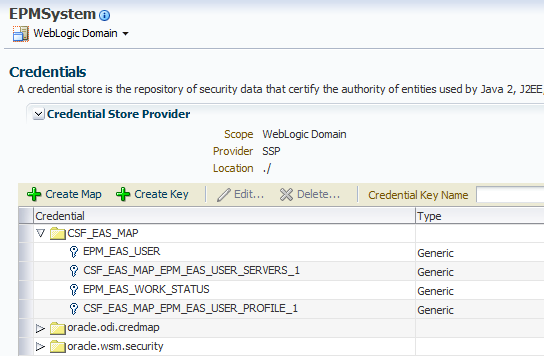
The information is held in a structure which is based on maps and keys and each key can be a generic or password type.
“A credential is uniquely identified by a map name and a key name. Typically, the map name corresponds with the name of an application and all credentials with the same map name define a logical group of credentials, such as the credentials used by the application. All map names in a credential store must be distinct.”
All the EAS related keys are stored under the map CSF_EAS_MAP and all keys are of the generic type.
At the moment we only really have the same information as when using the orapki utility but the added advantage is using EM it is possible to edit the keys so let’s see what is in the EPM_EAS_USER key.

[<EASUser id="1" username="admin" password="2l0fKnpc78AIKpmB/I08qA==" supervisor="true" fullName="" email="epmadmin@epmmail.com" roles="" external="true" isMigrated="true" identity="native://DN=cn=911,ou=People,dc=css,dc=hyperion,dc=com?USER" />]
Nice, the user is contained in the credential and looks to be in a similar format to the way it was stored in pre 11.1.2 versions
If there are multiple users then these will all be stored in the one credential for example:
[<EASUser id=”1”……/><EASUser id=2”…./>]
How about the server information, well this is slightly different and the key name relates to the EAS user id, so id=”1” would match to the key CSF_EAS_MAP_EPM_EAS_USER_SERVERS_1
Multiple EAS users mean multiple server keys and the same goes for profiles.
The key is stored differently to that of the users as it stores a property name and value.

Editing the Key provides the next stumbling block as it does not visibly display the server information though in reality you wouldn’t really want to have to go into EM and into each key to extract the details as it would be time consuming and is too manual for my liking.
Are there any other options available? Well reading through the Oracle security (OPSS) documentation there is the following useful bit of information:
“Oracle Platform Security Services includes the Credential Store Framework (CSF), a set of APIs that applications can use to create, read, update, and manage credentials securely.”
So maybe by putting together a little bit of code it could help in displaying the EAS credentials.
Before I attempt this I thought it would be wise to configure the EAS web application to use a separate wallet file so there is no chance of screwing up the file which is shared by other products, this method is usually suggested when experiencing issues with users being lost from EAS because the wallet is being overwritten by other applications accessing and updating it.
To do this there are a couple of configuration files which should be copied from the within the domain to a new location for use with the new wallet file:
jps-config,xml (JPS=Java Platform Security)
“This file can be seen as the lookup services registry for OPSS. Among these services are login modules, authentication providers, authorization policy providers, credential stores and auditing services.”
system-jazn-data.xml
“This is the default configuration file for file-based identity and policy stores in Oracle Platform Security.”

Next the new location of the jps-config.xml file has to be updated in the property which is passed into the EAS java web application.

If it is a Windows environment then registry is updated with the new value and for Unix the setCustomParamsEssbaseAdminServices.sh script.
Starting the EAS web application should automatically create a new wallet file.

Analysing the EAS application log (based on 11.1.2.3) shows that because the MAP and keys don’t yet exist they are created.

This can also be verified using the orapki utility

There will be no keys created for servers until a user logs into EAS and add an Essbase server.
On to the Java code to output the EAS credential information, now I am not going to go into depth about how it works as if you spend a little time researching it is not that difficult to do.
Please note I can’t confirm whether any of the following is supported and don’t hold me responsible for corrupting the wallet.
To be able to access the wallet a JPS configuration file is required providing the path to the wallet, I created a simple file which only contained details for the credential store.

The required security Java classes are all available under:
<MIDDLEWARE_HOME>\oracle_common\modules

Basically the path and filename for the JPS configuration file are passed in as an argument at runtime, the wallet file is then read and then all keys and credentials that are part of the EAS map are outputted.
As the wallet has just been created and no users have accessed EAS the following information is extracted.

Not very interesting yet so let’s login into EAS.

Run the code again:

This time the user credentials have been extracted from the wallet.
Now to add an Essbase server using "Single Sign On"

Run again:

Interesting by using the API method the server information is fully displayed.
Once the user has logged out of EAS the profile key is either updated or created.

How about adding an Essbase server without using "Single Sign On"

This time the server information is added to the same key.

The password doesn’t look to be encrypted either when adding a server in this way.
Extracting the information is great but I wanted to know if it was possible to add an Essbase server directly to the wallet, I dug around a bit and found the required Java classes then modified the code so that the user and server to be added are passed in as an argument.

The server looked to be successfully added to the wallet but the ultimate test was to log back into EAS and check.

Well there we have it the server is now available to the user and it could have easily been added for multiple users or if required a server could have been removed from specified users.
Hopefully this post has provided an insight to how EAS stores user information and gives you the power to report and manage this.
In the pre 11.1.2 world of EAS it was simple to find out what users, server, profiles were being used in EAS as the information was all stored in XML files within the EAS storage directory.
User information was stored in a file called users.xml, opening the file provides all the users that had logged into EAS and some of their credentials.
For each of the users there will be a directory which contains server information and profile information.
Opening the servers.xml file will display the Essbase server information which has been added by the user in the EAS console.
So nice and simple to understand what is happening with user information but as version 11 was quickly evolving and maturing the way the information was being stored changed from version 11.1.2.0
It is sensible to assume that the credentials were moved into relational repository such as the EAS or Shared Services databases, many of the old style properties files were heading into the Shared Services database so maybe this is the location of where the information is being held.
Searching through the database tables you will not find any of the user details and only configuration type information.
A clue to where the information is being held occurs if you happen to be hit with users disappearing from EAS or there are problems suddenly starting up the web application server.
Researching these problems and looking through Oracle Support they both point to a problem with the credential store cwallet.sso file which is held within the application server domain.
“A credential store is a repository of security data (credentials). A credential can hold user name and password combinations, tickets, or public key certificates. Credentials are used during authentication, when principals are populated in subjects, and, further, during authorization, when determining what actions the subject can perform.”
A good example of proving this file is linked to EAS is try logging in with a new user in the EAS console or say add a new Essbase server and you will see the modified date update as the changes are applied.
The question to why the wallet file was chosen over storing the credentials in the relational database I am not sure on and the only reason I can think of is because of the standalone options available with Essbase and EAS, though to be honest after all the years of pain with the Essbase security file it wouldn’t be my first choice to go down a binary file route.
Well that is all well and good knowing the details might be kept in the file but what is more important is accessing this information and understanding how it is stored.
There are multiple ways of accessing the internals of the file and I will go through a few of the options as some methods are better than others.
The first stop for me was the orapki utility:
“The orapki utility is provided to manage public key infrastructure (PKI) elements, such as wallets and certificate revocation lists, from the command line.”
The utility is available in:
<MIDDLEWARE_HOME>\oracle_common\bin\
Displaying the information can be achieved by running the following from command line
orapki wallet display -wallet <path_to_wallet>\cwallet.sso
The output confirms there is information in the wallet which relates to EAS users, servers and profiles but does not provide much more than that.
Just for reference there are also credentials for ODI (which are used by FDMEE) and oracle web services manager stored in the file.
So how about accessing the credentials through Enterprise Manager Fusion Middleware Control which is installed and deployed by default from 11.1.2.2, for previous 11.1.2 versions it is possible to deploy it which I covered in a past blog.
The credential wallet can be accessed in EM by right clicking the EPMsystem domain and selecting Security > Credentails.
Viewing the wallet using this method provides a much clearer vision and understanding on how the information is being stored.
The information is held in a structure which is based on maps and keys and each key can be a generic or password type.
“A credential is uniquely identified by a map name and a key name. Typically, the map name corresponds with the name of an application and all credentials with the same map name define a logical group of credentials, such as the credentials used by the application. All map names in a credential store must be distinct.”
All the EAS related keys are stored under the map CSF_EAS_MAP and all keys are of the generic type.
At the moment we only really have the same information as when using the orapki utility but the added advantage is using EM it is possible to edit the keys so let’s see what is in the EPM_EAS_USER key.
[<EASUser id="1" username="admin" password="2l0fKnpc78AIKpmB/I08qA==" supervisor="true" fullName="" email="epmadmin@epmmail.com" roles="" external="true" isMigrated="true" identity="native://DN=cn=911,ou=People,dc=css,dc=hyperion,dc=com?USER" />]
Nice, the user is contained in the credential and looks to be in a similar format to the way it was stored in pre 11.1.2 versions
If there are multiple users then these will all be stored in the one credential for example:
[<EASUser id=”1”……/><EASUser id=2”…./>]
How about the server information, well this is slightly different and the key name relates to the EAS user id, so id=”1” would match to the key CSF_EAS_MAP_EPM_EAS_USER_SERVERS_1
Multiple EAS users mean multiple server keys and the same goes for profiles.
The key is stored differently to that of the users as it stores a property name and value.
Editing the Key provides the next stumbling block as it does not visibly display the server information though in reality you wouldn’t really want to have to go into EM and into each key to extract the details as it would be time consuming and is too manual for my liking.
Are there any other options available? Well reading through the Oracle security (OPSS) documentation there is the following useful bit of information:
“Oracle Platform Security Services includes the Credential Store Framework (CSF), a set of APIs that applications can use to create, read, update, and manage credentials securely.”
So maybe by putting together a little bit of code it could help in displaying the EAS credentials.
Before I attempt this I thought it would be wise to configure the EAS web application to use a separate wallet file so there is no chance of screwing up the file which is shared by other products, this method is usually suggested when experiencing issues with users being lost from EAS because the wallet is being overwritten by other applications accessing and updating it.
To do this there are a couple of configuration files which should be copied from the within the domain to a new location for use with the new wallet file:
jps-config,xml (JPS=Java Platform Security)
“This file can be seen as the lookup services registry for OPSS. Among these services are login modules, authentication providers, authorization policy providers, credential stores and auditing services.”
system-jazn-data.xml
“This is the default configuration file for file-based identity and policy stores in Oracle Platform Security.”
Next the new location of the jps-config.xml file has to be updated in the property which is passed into the EAS java web application.
If it is a Windows environment then registry is updated with the new value and for Unix the setCustomParamsEssbaseAdminServices.sh script.
Starting the EAS web application should automatically create a new wallet file.
Analysing the EAS application log (based on 11.1.2.3) shows that because the MAP and keys don’t yet exist they are created.
This can also be verified using the orapki utility
There will be no keys created for servers until a user logs into EAS and add an Essbase server.
On to the Java code to output the EAS credential information, now I am not going to go into depth about how it works as if you spend a little time researching it is not that difficult to do.
Please note I can’t confirm whether any of the following is supported and don’t hold me responsible for corrupting the wallet.
To be able to access the wallet a JPS configuration file is required providing the path to the wallet, I created a simple file which only contained details for the credential store.
The required security Java classes are all available under:
<MIDDLEWARE_HOME>\oracle_common\modules
Basically the path and filename for the JPS configuration file are passed in as an argument at runtime, the wallet file is then read and then all keys and credentials that are part of the EAS map are outputted.
As the wallet has just been created and no users have accessed EAS the following information is extracted.
Not very interesting yet so let’s login into EAS.
Run the code again:
This time the user credentials have been extracted from the wallet.
Now to add an Essbase server using "Single Sign On"
Run again:
Interesting by using the API method the server information is fully displayed.
Once the user has logged out of EAS the profile key is either updated or created.
How about adding an Essbase server without using "Single Sign On"
This time the server information is added to the same key.
The password doesn’t look to be encrypted either when adding a server in this way.
Extracting the information is great but I wanted to know if it was possible to add an Essbase server directly to the wallet, I dug around a bit and found the required Java classes then modified the code so that the user and server to be added are passed in as an argument.
The server looked to be successfully added to the wallet but the ultimate test was to log back into EAS and check.
Well there we have it the server is now available to the user and it could have easily been added for multiple users or if required a server could have been removed from specified users.
Hopefully this post has provided an insight to how EAS stores user information and gives you the power to report and manage this.