Monday, 23 September 2013

EPM Standalone Log Analysis Utility

In 11.1.2.3 a new command line utility was released that analyses ODL compliant logs to help troubleshoot problems and find route causes.

If you are not aware of the utility here is the Oracle documented information on it:

The Log Analysis Utility is a command line utility that helps you quickly identify the cause of issues reported by EPM System components by analyzing the applicable log files. Because this utility automates log file analysis, you do not need to manually locate and scan through EPM System log files to identify issues. Information required to troubleshoot the issue or to escalate it to Oracle Support is quickly available by running this utility. Generally, run on the server where Oracle Hyperion Foundation Services is installed, this utility accesses and analyzes log files on all the servers identified in the Oracle Hyperion Shared Services Registry of an EPM System instance.

Using the Log Analysis Utility you can:

  • List EPM System errors that occurred within a time period. System issues are related to services, intercomponent communication errors, and user directory communication errors.

  • List functional issues that occurred within a time period. Functional issues are related to EPM System component functionalities; for example, failure during an Oracle Essbase calculation run or the forms load process in Oracle Hyperion Planning or Oracle Hyperion Financial Management.

  • Trace an Execution Context ID (ECID) through log files to trace user sessions across EPM System components. ECID is a unique identifier that is used to correlate events that are part of the same request execution flow. ECID is an Oracle standard unique ID.
The good news is this utility has been now been released as a standalone version that can be used to analyse logs from any 11.1.1.x to 11.1.2.x deployments and does not have to be run on EPM servers as it just requires access to the logs.

Though be aware that it is only ODL compliant logs it will run against so the older the EPM version the less of these type of logs will exist

The standalone utility can be downloaded as a patch (17425397) from Oracle support:


Once downloaded it is simple to get up and running with it.


Extract the utility and then edit loganalysis.bat/sh to set to a valid JAVA_HOME, it is worth noting that the utility is currently compiled with JDK 1.6.0_35 so I am not sure how well it will run against older versions of Java such as the default ones used in 11.1.1.x

Now I am not going to go through all the various parameters that can be used with the utility as the readme and documentation provide sufficient information to get a good understanding on what functionality is available.

I tested the utility against an 11.1.2.2 environment and at first I thought it would run just by setting the EPM_ORACLE_HOME variable but the utility errors out.


As this is a standalone utility it requires the use of –d parameter which defines the directory path to start searching from, the utility will search all the directories below the base directory.

As an example I stopped the database for all the EPM components and then started up Essbase which should generate errors because the communication to the Shared Services registry will not be available.

The command I used was:

loganalysis.bat -system -tday 1 -d E:\Oracle\Middleware\user_projects\epmsystem1\diagnostics\logs\essbase

This basically means the utility will search the logs starting in E:\Oracle\Middleware\user_projects\epmsystem1\diagnostics\logs\essbase and run a report for any ERROR and INCIDENT_ERROR types generated within the last day.


Once the utility has been run it will generate a html report in the same directory as the utility and then open it.


The report has picked up 12 errors and by looking at the messages straight away it points to an issue connecting to the Shared Services registry.

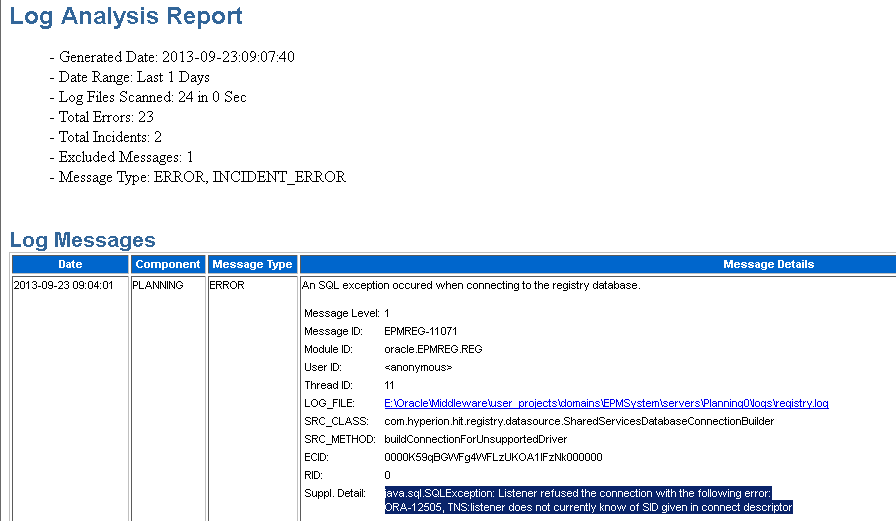
Running a similar report against the planning logs highlights issues with the database connection.

loganalysis.bat -system -tday 1 -d E:\Oracle\Middleware\user_projects\domains\EPMSystem\servers\Planning0\logs


The report also includes all the logs files which have been processed.


The utility has functionality to allow searching for a string using the –s parameter which I gave a quick test to search for the following “Out of memory” error:

[2013-09-20T19:39:20.127+01:00] [Profitability0] [ERROR] [EPMPCM-03028] [oracle.EPMPCM.web] [tid: 16] [userId: ] [ecid: 0000K1FlAWh7a6i5p7K6yY1HyxpJ0004_4,0] [SRC_CLASS: com.hyperion.profitability.web.filter.PersistenceFilter] [APP: PROFITABILITY#11.1.2.0] [SRC_METHOD: doFilter] Rolling back current transaction because of an exception[[javax.servlet.ServletException: java.lang.OutOfMemoryError: allocLargeObjectOrArray: [C, size 1179664


I ran the following:

loganalysis.bat -system -d E:\Oracle\Middleware\user_projects\domains\EPMSystem\servers\ -s "java.lang.OutOfMemoryError"


Unfortunately the utility did not pick up the error as it does not seem to search the supplemental detail in the log entry and the search needs to be focused on the initial error message for example:

loganalysis.bat -system -d E:\Oracle\Middleware\user_projects\domains\EPMSystem\servers -s "Rolling back current"


I am hoping the search functionality will be improved to allow a full search of the log entries which I understand will impact the running time but it would be nice to have the option, also allow multiple search strings and wildcards (I did not see anything mentioned about these in the documentation)

The utility does have some nice options like be able to search by different error types so it can be used to pick up functional related areas so let’s see when the last time the PLANS Essbase application was last started and its process ID

loganalysis.bat -functional -d E:\Oracle\Middleware\user_projects\epmsystem1\diagnostics\logs\essbase -s "Application [PLANS] started"


The utility can be set to run against multiple directory paths and can also analyse by ECID so in theory once you have the ECID you could trace a user’s session across the system.

So it is definitely worth having a look at the utility as it is easy to set up, it does not have to be run on an EPM server, it can be used across multiple EPM versions and certainly can save time trawling through the mass of logs.

I would be interested to know your views on the utility and how you feel it can be improved because I know the developers are looking for feedback which I will pass it on so maybe the enhancement requests will be included in future releases.

Wednesday, 4 September 2013

EAS - single sign-on to Essbase using separate Shared Services instances

I am back with a blog that was inspired from a question posted on the OTN forums, the poster asked if it was possible to use single sign in EAS to connect to two Essbase servers which are managed by separate Shared Services instances.

The initial answer is no because each Shared Services instance will use a unique CSS token encryption key but the answer changes to yes it is possible with the help of a utility.

Before I go through the process on how to achieve the single sign-on between environments I want to stress that this is just an example which may not be supported and it is not something I endorse so think about the consequences and security aspects before attempting.

I will be using 11.1.2.3 in the example but it should also be valid on 11.1.2.2

Both environments have been configured to use the same external directory in Shared Services as I don’t believe it will work with native directory accounts.


 An AD user called essbaseadmin has been provisioned with the Essbase administrator role on both environments.


I have already added the first Essbase server using SSO in EAS and as this it is using the same Shared Services instance there are no problems connecting to it.


Now let’s add an additional Essbase server which is managed by a separate Shared Services instance.


The “Use Single Sign On” option was selected.


Connecting to the Essbase server fails with the standard login fails due to invalid login credentials error.


Usually you would just add the server without using single sign-on and enter the username and password to connect with, I don’t see the problem with this and it should be the way to connect but that is just my opinion.

Anyway back to the original question and how to achieve the single sign-on, if you take a look on a foundation server in the directory:
<MIDDLEWARE_HOME>\EPMSystem11R11\common\CSS\11.1.2.0
you will see a zipped up file called regSyncUtil_EPM-to-EPM.zip


The archive file contains a pretty unknown utility which allows the migration of the CSS token encryption key between two Shared Services registries so a CSS token generated on the source environment should validate on the destination environment.

If you have ever gone through the process of single sign-on integration between Workspace and OBIEE then you will have used the same utility to migrate the encryption key.


Before running the utility there are a couple of steps that need to be completed.
  • Copy reg.properties from the source environment to the src folder.

  • Edit runRegSyncUtil.bat and update the ORACLE_HOME,ORACLE_HOME,JAVA_HOME variables to contain the correct full paths

If running the utility is successful the key should be read from the source registry and imported into the destination registry.


If you compare a registry report before and after running the utility you will see the CSSHandlerKey2 property value is updated.

Now that is done the Essbase server can be added again in EAS.


Once again the “Use Single Sign On” option is selected.


And there we go the user is able to log straight into the Essbase server using SSO.

This concept can no doubt be used for other products that generate and pass a SSO token.

Friday, 23 August 2013

11.1.2.3 PSU released for Essbase products

The first 11.1.2.3 patch set update for Essbase related products was released this week and this time they all start with a memorable .001


If you are interested here are all the patches:

Patch 13951433: PATCH SET UPDATE: HYPERION ESSBASE SERVER 11.1.2.3.001

Patch 17323312: PATCH SET UPDATE: HYPERION ESSBASE CLIENT MSI 11.1.2.3.001

Patch 13951424: PATCH SET UPDATE: HYPERION ESSBASE RTC 11.1.2.3.001

Patch 13951402: PATCH SET UPDATE: HYPERION ESSBASE ADMINISTRATION SERVICES SERVER 11.1.2.3.001

Patch 13951408: PATCH SET UPDATE: HYPERION ESSBASE ADMIN SERVICES CONSOLE MSI 11.1.2.3.001

Patch 13951415: PATCH SET UPDATE: ORACLE ESSBASE STUDIO SERVER 11.1.2.3.001

Patch 13951419: PATCH SET UPDATE: ORACLE ESSBASE STUDIO CONSOLE MSI 11.1.2.3.001

Patch 13951412: PATCH SET UPDATE: HYPERION ANALYTIC PROVIDER SERVICES 11.1.2.3.001

If you are running 11.1.2.3 then it is worth checking out the readme for each patch to see if you feel it is worth applying though they are all purely bug fixes and contain no additionally functionality

As usual the defect fix information in the readme is very vague and my personal favourite description is “Missing data after Essbase application.”, if you understand what that means then do let me know :)

One thing to watch out for if you are applying the APS patch and have the Essbase client installed is that three jar files in <MIIDLEWARE_HOME>\EPMSystem11R1\common\EssbaseJavaAPI\11.1.2.0\lib may have been installed in read-only mode and Opatch will fail trying to update them, easy to fix by removing the read-only attributes.

Friday, 9 August 2013

EPM Workspace integration with OBIEE issues when using SQL Server

I wasn’t expecting to write another update to the Workspace/OBIEE integration process but I recently saw a comment on my blog which highlighted issues when configuring with SQL Server, I must admit that I did neglect to test the configuration against SQL Server and I usually base my testing on Oracle.

Now I could have left it but it would just niggle in the back of my mind until I knew if the process does have problem with SQL Server and if it is possible to succeed with the integration.

The problem was that I didn’t have access to any OBIEE environments which were configured using SQL Server so that was the first task to complete, if only my blog postings took the time it does to write them up.

I am not going to go through the Workspace to OBIEE integration process again as it exactly the same as I covered here.

The first step of the integration process is to allow OBIEE to accept the EPM SSO token when integrating with Workspace which basically means that both the EPM registry and the OBIEE version of the registry need to keep a shared encryption key, this is achieved by configuring and running the register sync utility


I didn’t experience any issues and the configuration ran through successfully.

The next step is where I started to encounter problems.


The documented step is to run the epmsys_registry utility to remove the applicationID property from the OBIEE EPM registry but before removing the property I usually run the utility to produce a registry report. 


The utility runs but when the report opens it is blank.


The utility produces registry.log which is located in:
<BI_ORACLE_INSTANCE>\diagnostics\logs\registry

[2013-07-30T22:42:52.618+01:00] [EPMREG] [ERROR] [EPMREG-11043] [oracle.EPMREG.REG] [tid: 10] [ecid: 0000K0lY9ziFc5WFLzyGOA1Hy3DS000000,0] [SRC_CLASS: com.hyperion.hit.registry.Registry] [SRC_METHOD: lookupComponents] An exception when looking up components of type SYSTEM_TASKS_CONFIGURATION.
[2013-07-30T22:42:52.618+01:00] [EPMREG] [ERROR] [EPMREG-11099] [oracle.EPMREG.REG] [tid: 10] [ecid: 0000K0lY9ziFc5WFLzyGOA1Hy3DS000000,0] [SRC_CLASS: com.hyperion.hit.registry.Registry] [SRC_METHOD: lookupComponents] Exception occurred.[[
java.lang.NoClassDefFoundError: weblogic/jdbcx/sqlserver/SQLServerDataSource
    at com.hyperion.hit.registry.datasource.SQLServerSharedServicesDatasource.getInstance(SQLServerSharedServicesDatasource.java:83)
    at com.hyperion.hit.registry.datasource.SharedServicesDataSourceFactory.getDataSource(SharedServicesDataSourceFactory.java:101)
    at com.hyperion.hit.registry.datasource.SharedServicesDatabaseConnectionBuilder.getConnection(SharedServicesDatabaseConnectionBuilder.java:77)
    at com.hyperion.hit.registry.datasource.SharedServicesDatabaseConnectionBuilder.getConnection(SharedServicesDatabaseConnectionBuilder.java:28)
    at com.hyperion.hit.registry.RegistryUtils.createNewConnection(RegistryUtils.java:399)
    at com.hyperion.hit.registry.Registry.lookupComponents(Registry.java:1058)
    at com.hyperion.hit.registry.ui.Console.getComponents(Console.java:269)
    at com.hyperion.hit.registry.ui.Console.generateReport(Console.java:251)
    at com.hyperion.hit.registry.ui.Console.main(Console.java:148)

]]

So basically the epmsys_registry utility can’t find required java classes when it is being run.

The java classes the utility is looking for are the SQL server JDBC ones which can be found in:
<BI_ORACLE_HOME> \common\JDBC\Oracle\11.1.2.0\lib\ wlsqlserver.jar


If you edit the epmsys_registry script there is no reference to the jar file.


I updated the script to include the jar file in the classpath.


Time to run the utility again.


This time it must have got further because there is additional message but still the report produced is blank.

The log was full of error messages but didn’t really indicate clearly where the issue was.

[2013-07-30T22:52:12.956+01:00] [EPMREG] [ERROR] [] [oracle.EPMREG.REG] [tid: 10] [ecid: 0000K0l^IiaFc5WFLzyGOA1Hy3MC000000,0] [SRC_CLASS: com.hyperion.hit.registry.utils.JDBCTemplate] [SRC_METHOD: executeQueryOptimized] EPMREG-51067

[2013-07-30T22:52:12.956+01:00] [EPMREG] [ERROR] [] [oracle.EPMREG.REG] [tid: 10] [ecid: 0000K0l^IiaFc5WFLzyGOA1Hy3MC000000,0] [SRC_CLASS: com.hyperion.hit.registry.utils.JDBCTemplate] [SRC_METHOD: executeQueryOptimized] EPMREG-51068


I then took a look at the epmsys_registry script on an EPM environment and found a slight difference.


In the EPM environment the classpath contains epm_j2se.jar but in the OBIEE environment it references epm.jar


I commented out the line with epm.jar and added in epm_j2se.jar then ran the utility again.


Success the registry report was generated successfully so on to the next step to remove “applicationId” property from the OBIEE EPM registry.

<BI_ORACLE_INSTANCE>\config\foundation\11.1.2.0\epmsys_registry removeproperty  SHARED_SERVICES_PRODUCT/@applicationId


Once again successfully though you may get the following error which can be ignored:

An error occured during the operation. Detailed Message is - java.sql.SQLSyntaxErrorException: [FMWGEN][SQLServer JDBC Driver][SQLServer]Invalid object name 'CONFIG_HISTORY'.

The error is due to a table which does not exist but this is only required to logs entries in an EPM configurations so need to worry.


Generating another registry report confirms the property has been removed.

I followed the rest of the steps which I documented in my previous blog and I did not encounter anymore issues.


So with a few additional updates it is certainly possible to integrate Workspace with OBIEE when SQL Server is the chosen database type.

After writing up this blog I noticed that Oracle have also just confirmed the issue which can be found in the following support document:

“OBIEE: Configuring SSO for Essbase and Hyperion Financial Management: Error Running epmsys_registry.sh removeproperty " java.lang.NoClassDefFoundError: weblogic/jdbcx/sqlserver/SQLServerDataSource" (Doc ID 1572650.1)”

Friday, 19 July 2013

EPM 11.1.2.3 Registry cleaner utility bug + fix

Quick update from me today about a bug with the registry cleaner utility in 11.1.2.3.

The utility was introduced and installed by default in 11.1.2.2 though it is also available in 11.1.2.1 once a patch has been applied.

Now I am not going to go through the utility as I have already wrote a blog about it which you can read about here.

In 11.1.2.1 and 11.1.2.2 you can run the utility by executing the registry-cleanup.bat|sh script


If the utility finds any issues with the registry then a number of options are provided which the appropriate action can then be taken.

In 11.1.2.3 the utility now has two available modes which are preview and repair, the same script (registry-cleanup.bat|sh) is available but this will run the utility in repair mode which means there will be no additional options provided and if the utility encounters issues with the registry it will automatically fix them.

The utility can run in the two modes by the following scripts:

epmsys_registry.bat|.sh preview
epmsys_registry.bat|.sh repair


So let’s run the utility in preview mode.


The utility fails on the duplicate web application components step with the java error:

java.lang.reflect.InvocationTargetException

At first I thought this bug only occurred after scaling out an environment but it looks to happen even after deploying a single component and affects all operating systems.

Luckily that is not the end of the story as a patch was recently released which addresses the issue.


The patch 16831604 is available under the Hyperion Installation Technology product type and among a number of fixes is

16820256 REGISTRY CLEANER FAILS DUE TO ERROR "JAVA.LANG.REFLECT.INVOCATIONTARGETEXCEPTION

The readme has a slightly different description for the bug but they are basically the same.

16820256 Registry Cleaner (epmsys_registry.bat(.sh) preview)  fails due to Error "JAVA.LANG.REFLECT.INVOCATIONTARGETEXCEPTION

The patch can be easily applied using Opatch and once it has then the utility can be run again.


The utility should run through all steps and complete without any Java errors.

Another interesting point is if you are using integration between Workspace and OBIEE and run the utility it may pick up some incorrect registry entries.


I am not sure whether this is something specific to my test environment or there is a bug with the utility that adds the OBIEE information to the Shared Services registry.

Anyway I repaired the registry and the integration between Workspace and OBIEE still looks to be functioning correctly so maybe it is safe to run a repair.

Sunday, 30 June 2013

FDMEE 11.1.2.3 – ODI Console and Studio

If you are deploying FDMEE 11.1.2.3 and have a requirement to install ODI Studio then you may be slightly confused if you read through the Installation and Configuration documentation as it currently states the following:

“If you are installing and configuring FDMEE, Oracle Data Integrator is automatically installed and configured for you. The database for Oracle Data Integrator is in same database as FDMEE and the Oracle Data Integrator agent application is deployed in same JVM as FDMEE. Optionally, you can install ODI Studio using ODI_Studio_11123.zip.”

I will get on to the Studio shortly because as well as the J2EE agent automatically being deployed and configured the ODI console is also deployed to the same WebLogic managed server which is still named ErpIntegrator:


The managed server is deployed on a default port of 6550 which means the console can be accessed on either
http://<fdmeeserver>:6550/odiconsole


 If you are not already aware the console is basically a cut down web version of the Studio and if you want to understand more about it then it is worth reading the section “Working with Oracle Data Integrator Console” in the ODI documentation.

The security for the Console/Studio is independent of EPM security though it is possible to use external authentication and you can read through the fun and games I had setting it up in ODI 11.1.1.5/6 here, here and here.

I have not yet configured ODI 11.1.1.7 (which is the version deployed with EPM 11.1.2.3) to use external authentication and it is my intention to go through and revisit the process to see if has changed and if so then bring it up to date in future blogs.

The console does not have to be accessed directly and once the web server has been configured it should be possible to access it through that route.


The ODI console and agent will have been added to the web server proxy configuration which it can be accessed through http://<webserver>:<port>/odiconsole


By default ODI is configured with only one user which is SUPERVISOR and the password still reflects the company that Oracle acquired ODI from in 2006 which is SUNOPSIS, in my opinion using a default password poses a security risk so I recommend updating the password straight away.

In reality you need the Studio up and running to be able to change the password so going back to the statement in the documentation “you can install ODI Studio using ODI_Studio_11123.zip

So where is this file, well unless I am mistaken it doesn’t seem to exist and at first I thought all the ODI installation files do exist within the EPM install files but it does not seem to be the case.

The reason why I thought they existed was because if you go to the location where all the EPM installation files have been extracted to then you should see a directory named odi


Within the odi directory there are installers for both Windows and Unix (check the ODI support matrix for more information on supported operating systems for Studio) type systems.


I thought great it should be possible to install the Studio but once the installation commences you will be hit with a number of file not found errors and if you choose to continue through them the installation will complete successfully but there will be no Studio installed.


It looks like not all the necessary files for the Studio have been included which doesn’t make much sense to me so the best option is to download the ODI Studio installation files from Oracle Software Delivery Cloud under Enterprise Performance Management System (11.1.2.3.0), this is what the documentation may be referring to as ODI_Studio_11123.zip


Alternatively you can download the full ODI installation under Fusion Middleware 11g which is the route I took as I already had the files downloaded though the install process is exactly the same for either download.


Once all the files have been downloaded and extracted.

Start the installer:

Windows:  setup.exe -jreLoc JRE_LOCATION

Linux: ./runInstaller -jreLoc JRE_LOCATION


At the Installation Type stage "ODI Studio" should already be selected.


The Oracle Home Directory will be pointing to a location outside of the EPM installation which is perfectly fine to install to but as ODI components have already deployed I think it makes more sense to point to the existing home directory.


The warning says upgrade but as the versions should be currently the same I don’t believe it poses an issue but this might need further consideration in the future if FDMEE patches have been applied.

The next screens are for the configuration to ODI master repository which is part of the FDMEE database so that is where the database connection details should be configured to.

If the connection information has been entered correctly along with the supervisor password then the FDMEE work repository should be populated.


I said that it should not be a problem installing to the existing ODI home within the EPM installation and the installation completion message verifies this:


The Studio should now be available.


The repository connection information should all be automatically populated from running the Studio installation.


The SUPERVISOR password can be changed and once this has been done the ODI setup in FDMEE will need to be updated with the new password.


The ODI Java agent and Console also have the supervisor password stored in the Application Server credential store which is used to connect to the ODI master repository.

If you change the supervisor password and start up the FDMEE application server without updating the credential store you will see the following in the logs:


The password can be updated by either using the WebLogic scripting tool or through Enterprise Manager.

WLST can be found at <MIDDLEWARE_HOME>\odi\common\bin

Start the WebLogic admin server and once running start wlst and run the following commands:

connect('epm_admin','<weblogic_admin_password>','t3://<admin_server>:7001')
updateCred(map="oracle.odi.credmap", key="SUPERVISOR", user="SUPERVISOR", password="<new_password", desc="Key for Supervisor")
disconnect()


Alternatively log into Enterprise Manager Fusion Middleware Control :
http://<weblogic_admin_server>:7001/em


Go to EPMSystem > Security > Credentials


Edit the SUPERVISOR key and update the password then you should be good to go.

Now deploying FDMEE certainly does make life much simpler than all the steps that were required to get ODI up and running with ERPi but there is still room for improvement.