Sunday, 10 April 2011

Applying EPM 11.1.2.1 maintenance release

I am not here today to announce the release of 11.1.2.1 as I think the news has definitely has been posted enough times now, I’d be extremely shocked if you didn’t know, maybe you have been living in a cave and decided to visit my blog when you first ventured out.

Now with this new release there are more options to move to it, you can upgrade/migrate from previous versions, fresh install or apply the maintenance patch to upgrade 11.1.2 to 11.1.2.1, some of this options I will be covering in future blogs.

This release is also about bug fixes as masses have been addressed, there are a number enhancements and new features in a selection of the products but nothing ground breaking (you may disagree), it looks like planning has a larg share of them.

As in past blogs I have gone through the installation and maintenance patches for previous releases so I thought I might as well share my experience of apply the maintenance release today. The release has only been around for a few days so I apologise if I provide any incorrect information.

The OS the maintenance release is being applied to is windows 2008 x64 SP2.

If you are intending of applying the maintenance release I recommend having a read of the “Installation and Configuration Guide” as it covers important detailed information

Next step is download all the required files, I usually obtain them from Oracle edelivery, the files that are required are covered in the install and config guide, note this release there are seven foundation files and not four, also don’t forget the additional content file.

Once you have all the files then extract them all to the same location (if you have the install files in a folder from the previous release 11.1.2 make sure you extract to a different folder), if you are installing on a distributed environment make sure you extract the necessary files on each machine and take note of information provided in the config guide, for instance
  • On the machine on which you plan to administer the WebLogic Server, you must install all Web applications for all applications you plan to deploy on any machine in the environment. (The WebLogic Administration Server is installed and deployed on the Foundation Services machine.)
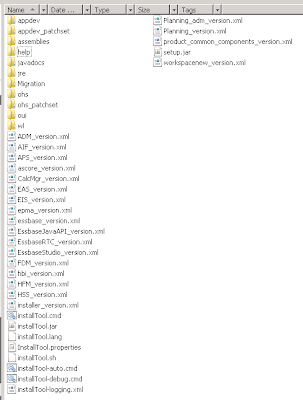

There are a number of extra folders at root level in this release.

Now there is a list of prerequisites to be met before installing the Maintenance Release to move from 11.1.2 to 11.1.2.1, here is a summary of the main points.

• You must apply the maintenance release on top of your existing EPM System installation.

• You must apply the maintenance release to all EPM System products in the deployment. You cannot apply the maintenance release to only some products.

• If you are applying the maintenance release to move from EPM System release 11.1.2.0 to EPM System Release 11.1.2.1, or if you are reinstalling EPM System products, you must first stop all the services for EPM System products.

• If you are applying the maintenance release to move from Essbase Release 11.1.2 to Release 11.1.2.1, you must first export linked reporting object information from the 11.1.2 database, and then delete the linked reporting objects. After applying the maintenance release, import the exported linked reporting objects. More information available
here

One more point before starting the installation is to be sure you have more than 5GB spare on the drive where EPM is currently installed, if there is not you will not be able to complete the installation steps.

Once all the prerequisites have been met then start up the installation by executing InstallTool.cmd/sh
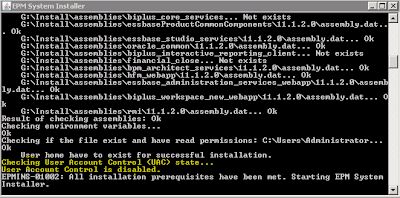


A new addition to the start up of the installer is the check whether UAC is enabled, I know this could cause problem with 11.1.2 if it was enabled, if it is enabled in this release a warning will be displayed and the installer will not start up.


There are also a few more prerequisite checks, good news all have been passed.


Nothing new on this screen, displays the current Middleware Home.


Three main options to choose from and this time it is “Apply maintenance release”.


Check that there is a tick in each of the products with “11.1.2.0.0” against them, if there is not then you have not downloaded and extracted all the required files.

Once you click next a list of products to patched will be shown, click next again and the maintenance patching will start up, this is a good point to go and spend time doing something that is actually meaningful in life and then on your return hope the status is all green.


All green, see it wasn’t worth hanging around staring at the screen.

Click the Configure button, when I first installed 11.1.2 the configure button never worked but in this release it actually opened up the configurator.


You have the choice whether to stick with the original instance or create a new one, I have no reason to change this so I kept with the default.


The configurator should have checked all the pending tasks for each product that need configuring, I unchecked everything except foundation as I want to be sure there are no issues with the maintenance release, if there is a problem with foundation there wouldn’t be any point configuring the other products.

Another reason for doing this is I have used a separate Oracle schema for each product database configuration, if you leave everything selected then it wouldn’t give the option to apply to separate schemas.

This is just a personal preference Oracle no doubt recommends to leave all products checked and the choice is yours.

If you choose to only configure foundation then you would have “Configure Web Server” again when you configure the other products, this step should always be done last.

I do notice there is a new option “Setup connection to Oracle BI and Publisher”, it is not checked by default and I am not intending on changing that today.


Keep “connect to a previously configured Shared Services database” selected.


Once again there should be no need to change anything when applying the maintenance patch.


Guess what, kept the defaults, can’t beat just clicking next.


Next one more time for me and then it will configure as I am only configuring foundation


All green again, nice smooth ride up to now.


Right that’s me satisfied, back to the configurator to run through the rest of the pending tasks product by product, remembering to check “Configure Web Server” in foundation as the last step, this may not be necessary as I have already configured the web server but I am not taking any chances.
Instead of selecting uncheck all, I unchecked the products I was not configuring for, this way I knew the product I was configuring had the required tasks checked.

I am not going to paste all the screens because as this is a maintenance release there were no new surprises and the process I followed was to stick with the defaults for each product, it was basically reconfiguring the database and redeploying the web application servers.

What I did notice after installing is the number of services being used by EPMA has now been cut down, originally this is how it looked in 11.1.2


The five non web app related services have been combined into one service called “Hyperion EPMA Server”.


I also noticed after the deployment of the web applications the issue I posted about here has been resolved; the installer’s temporary directory is no longer used.

I went through each product and quickly tested I could access them without problems, understandably this is not a rigourous test but it didn't show up any major issues, I will update this post if I do come across any.


For each planning application I had to log in and upgrade from 11.1.2 to 11.1.2.1

If you are using EPMA then this is taken from the installation readme -
"After the installation and configuration of Enterprise Performance Management Architect 11.1.2.1.000, you must install Enterprise Performance Management Architect patch 11804477"

Sunday, 27 March 2011

EPM 11.1.2 – 404 Issue

Recently I have being working on a project where we were occasionally being hit with various web applications producing 404 errors for no apparent reason, once the issue had occurred the only way to resolve was to restart the web app.

There seemed to be no correlation with activity on the web application and the issue occurring, it was also affecting different products at different times. In the end the problem was traced back to the WebLogic web applications trying to access temporary files that no longer existed, the files were created when the web app was started up but for some reason were being deleted at random intervals.


This issue will only affect windows deployments and the reason for it happening is when the web applications are first deployed they are configured to use a temporary directory associated with the windows account that is carrying out the configuration.

Now the problem doesn’t occur just because of the temporary directory, the issue occurs when a remote desktop session is used to connect to the machine hosting the web apps and the same account is being used that deployed the EPM web applications, occasionally when the user logs out of the machine windows cleans up any temporary files that are associated with the account so this wipes out all the temporary files being used by WebLogic causing the web applications to fail.

There are a few ways to resolve this problem, the easiest being just don’t log into the machine using the account that configured the system, another is to change the configuration settings for terminal services and turn off the deletion of temporary files on exit or my personal preference is to go through the registry and update the temporary file location that is being used for each deployed web application.

This can be done by starting up the registry editor and locating
HKEY_LOCAL_MACHINE\SOFTWARE\Hyperion Solutions\<web application>0


On selecting one of the web applications there will be
“-Dweblogic.j2ee.application.tmpDir=…” usually associated with JVMOption3


Update the folder location to a permanent folder, an example permanent location that could be used is
<Middleware Home>\user_projects\domains\EPMSystem\servers\<WebAppName>\tmp


Repeat the process for each of the deployed web applications; once the registry changes have been made the web application will need to be restarted to take effect. I am sure this issue will be fixed in the imminent release of 11.1.2.1 as it is a known issue but I thought I would put a quick post out there just in case there are others that are hit with this problem and search for a resolution.

Sunday, 13 March 2011

EPM 11.1.2 – Monitoring web applications

Now you may not be aware that EPM 11.1.2 includes Enterprise Manager Fusion Middleware Control, this is a web based management system which can monitor the availability and performance of all the Java Web Applications across the EPM environment, plus it only requires minimal configuration to get up and running with it.


Maybe I have not paid too much notice in the past but I wasn’t aware this was included within the EPM installation and only really stumbled across it.

I am going to briefly go through the steps required to get started with it, all the configuration is done on the machine where foundation services has been installed, the foundation machine typically hosts the WebLogic admin server and by extending the WL domain it is possible add the Middleware Control components.


In the <Middlewarehome>/oracle_common/common/template/applications folder there should be a file named oracle.em_11_1_1_0_0_template.jar, this is an extension template for WebLogic which adds in the Enterprise Manager Fusion Middleware Control functionality.


Before starting make sure the WebLogic admin server is not running and then launch the WebLogic configuration wizard which is available at <Middlewarehome>/wlserver_10.3/common/bin/config.cmd or .sh


Select “Extend an existing WebLogic domain”


Select the WL Domain the default name for 11.1.2 is EPMSystem and will be situated at <Middlewarehome>/user_projects/domains


The products that have already been installed in the EPM environment will determine which templates already installed and available, select the “Oracle Enterpise Manager – 11.1.1.0” option.


Accept the defaults on the Domain Name and Location screen.


On the Configure JDBC Data Sources screen just click Next as there is no need to change any of the connection information.
The next screen will just run through all the JDBC connections and check they are valid.


You may be presented with the above screen depending on what has been installed in the environment, the section is for configuring JBDC connection details for Oracle Web Services Manager (OWSM), and this is usually part of the SOA suite.

Unfortunately it is not possible just to click next as it will complain about a password, now you have two options either put in a fake password and click passed the warning or actually create a schema and fill in all the details.


I opted for the easy option and accepted the error as it is not important.


No need to do anything on the Optional Configuration screen just click Next


Select Extend to install the Middleware Control component.


When the configuration has completed start up the EPMSystem WebLogic Admin Server.


The EM Middle Control is available on http://<admin_server_machine>:<admin_server_port>/em. The default port for the admin server is 7001. The login details are the same as used for the admin server, these are entered when the EPM system is originally configured, the username will most probably be epm_admin


Once logged in you are presented with stats for the web applications in the EPM environment, instantly you can see the number of applications that are up or down and their CPU usage.


Selecting one of the web applications will take you to a screen with more detailed information for the selected app.


The first time you select a web application you will be advised that most of the monitoring functionality is unavailable until you apply a JRF template, once applying the template the web application will need to be restarted.

It is possible to restart the web application from within the console.


It can be achieved by either going to WebLogic Server > Control > Start up / Shut Down


Or by selecting Farm > Select “Create/Delete Components”


From this page you can restart all the web applications in the domain (providing the node manager is running) which is useful functionality as it saves having to logic into the admin console.


Now the JRF template has been applied and the web application restarted full monitoring should be available, I did encounter an issue at this point with the planning web application, the console said Planning was down even though it was running without any issues; the planning log also contained the following.

I didn’t get any issues applying the JRF to the other web application in the domain, maybe it was just an issue with the environment I am testing this on, when I get a chance I will have to check on another install to see if is a common fault.


For each web application there is detailed analysis of various metrics available from CPU Usage to response times of individual JSPs.


There are many further options available from the WebLogic Server drop down.


Detailed breakdown of the various logs for each web application are available, this includes enhanced search functionality and the ability to view different types of messages so for instance it is possible to only view Errors or Warnings.


Selecting Performance Summary from the dropdown provides graphical information on different metrics; the time of analysis can easily be changed to look at different start/end times.


There are a huge number of different metrics that can be selected and analysed from the Metric Palette.

Lots more functionality is available within the application but I am going to leave it there for today, if you want detailed information then the documentation is available at :- http://download.oracle.com/docs/cd/E14571_01/core.1111/e10105/monitor.htm

The Enterprise Manager Fusion Middle Control is a powerful lightweight application and definitely worth exploring in more detail if you want to monitor the Java based web applications across the EPM environment.

Saturday, 19 February 2011

EPM 11.1.2 – Speeding up workspace authentication

If you have been working with 11.1.2 then you may have encountered an issue with the amount of time it takes to authenticate through workspace. You will more than likely have experienced the issue if you have a number of products installed but not active so maybe in a development/test environment.

If you do have products installed and not started then you will also see problems with menu items not displaying icons as they should.


The speed it takes to authenticate can depend on how many products are installed but not started; the more products not started the longer it takes.

Waiting around for what seems an age to log into workspace is not ideal but it doesn’t have to be that way.

Now you could install only the products you are going to use or run the configurator again and reconfigure the web server for only the required products but there is a better solution (thanks to the always helpful and extremely knowledgeable John Booth for giving a pointer to the performance degradation note in the troubleshooting guide)


In workspace if you navigate to Administer > Workspace Server settings a pop window will open.


You will see a button for Enabled Products.


The enabled products displayed will depend on what is installed in the environment.So it is just a matter of deselecting the products you are not starting up.


Once you apply the changes log out and log back into workspace the authentication should have dramatically improved.


Not only has the authenticated speeded up the products that are not being used have been removed from the menu options.

This also means you have the ability to quickly remove access to products within the workspace, so say for example you wanted to stop access to HFM or Planning (ok you can go directly to planning but there are ways to stop direct access) then you would just need to change the enabled products, there are many situations where this would be useful and does not require messing around with provisioning)


If you disable all products you can strip workspace back to the bare shell.

This led me on to think whether this could be scheduled and automated, well the answer is yes but it is not as perfect solution as I would like.


If you log into shared services, expand Application Groups > Foundation and select Deployment Metadata.


Expand Shared Services Registry > Foundation Services > WorkSpace > LWA - workspace@<machinename>_28080
Right click Properties > Export for Edit, this will let you open or save a text file called component.properties


Within the file is the parameter DisabledProducts and a summary of the possible values and how they relate to the name in the workspace server settings are:-

Cds = explore
RAFramework = Reporting and Analysis Framework
Analyzer = Web Analysis
Reports = Financial Reporting
CALC = Calculation Manager
ChangeManagement= Impact Management
HP = Hyperion Planning
HFM = Hyperion Financial Management
BPMA = Enterprise Performance Management Architect (EPMA)
APS = Provider Services
AIF = ERP Integrator
FCC = Financial Close Management

In theory you can update the component.properties file to disable the products that are not going to be started or required and then use the LCM command line functionality or you could use the command line utility epmsys_registry to directly update the property value in the Shared Services registry.

I am not going to go into how to automate LCM as I gave an overview on how to do it a while back which you can view here and the documentation is available here.

I also covered how use the epmsys_registry utility which you can read here and the documentation is available here.

If you are going to use the epmsys_registry method then here is an example command line that will update the hss registry :-

epmsys_registry updateproperty SYSTEM9/FOUNDATION_SERVICES_PRODUCT/WORKSPACE/LOGICAL_WEB_APP/@DisabledProducts "cds,RAFramework,Analyzer,Reports,CALC,ChangeManagement,HP,BPMA,APS,AIF"

Before you go ahead with any of these methods you have to realise there is a major drawback to them, they do update the properties but unfortunately the cache being used by the foundation web application is not updated, so to get the changes to be applied the foundation web app has to be restarted.
I would have thought that if the properties are updated then they should be reflected straight away.

If you are interested in where the property values are stored in the foundation relational repository then have a look at the table HSS_COMPONENT_PROPERTY_VALUES


I don’t recommend you go and update the properties directly in the table though as I don’t want to be the one blamed for corrupting the Shared Services repository.