Monday, 24 March 2014

EPM patch 11.1.2.3.500 has landed

Finally after a long wait EPM 11.1.2.3.500 has arrived and the patch comes in a bundled 1.8GB download or as Oracle likes to call it a superpatch.

There are a few exceptions as the .500 Essbase related products were released last week and are separate downloads, I believe this also applies to DRM.


Patch 17529887: Patch Set Update: 11.1.2.3.500 for Oracle Enterprise Performance Management System

The clients for EPMA, HSF, Crystal Ball, Predictive Planning and the Smart View Planning extension can be found under:


Patch 18383790: PATCH BUG FOR 11.1.2.3.500 CLIENT INSTALLERS PSE ON WINDOWS

It is amusing that the patch is under what is now known as Hyperion HUB in Oracle Support, if anybody can remember HUB it was the original name many moons ago before changing to Shared Services, everything seems to go in a full circle.

From my perspective these are the key updates:

New Database Certification:
  • Oracle Database 12c release 12.1.0.1+

New Client Certifications:

  • Windows 8
  • Internet Explorer 10
  • Firefox 24 ESR
Note: Support for Firefox 17 ESR is deprecated with this release.
  • Microsoft Office 2013
New Server Virtualization Certifications:
  • Microsoft Hyper-V (Virtualization Windows Server 2008 and Virtual Desktop Infrastructure (VDI) for Windows)
Mobile Certifications:

EPM Mobile App:
  • iOS7, phone and tablet
  • Android 4.1, 4.2, 4.3 phone and tablet
Tablet-Friendly Planning User Interface:
  • iOS7, tablet only, Safari and Chrome browsers
  • Android 4.1, 4.2, 4.3, tablet only, Chrome browser
  • Windows 8 Standard, Pro and Enterprise Editions, tablet, Chrome and Internet Explorer 10 browsers
Financial Reporting:
  • iOS7, phone and tablet, Safari browser
  • Android 4.1, 4.2, 4.3, phone and tablet, Firefox 26+ browser
I know some will look at that list and ask where IE11 support is or windows 2012 server, well they are not there and considering how long it has taken for .500 to be released and how far 11.1.2.4 looks off you may be in for a long wait.

Also if you are using planning in non ADF mode then IE10 is not supported.

Besides some new additional functionality to various products I think the main talking point will be the EPM mobile app.
  • Provides users with easy access to key business information, for faster decision making and improved process flow
  • Enables on-the-go review and approval by managers and executives
  • Allows approvals and workflow across Planning, Financial Management, and Tax Provision
  • Offers a consistent user experience across EPM products by leveraging Oracle Application Development Framework (ADF) mobile technology
  • Is available for Apple and Android phones from the Apple App Store and Google Play Store
EPM Mobile is available for these EPM products:
  • Planning
  • Financial Management
  • Tax Provision
A very interesting update for planning besides the new mobile functionality is the performance enhancement claims which seem to be suggesting a massive improvement in response times and memory and CPU usage.
  • Response times were reduced by up to 98% comparing to earlier PS3 releases.  The improvements are greater with larger loads and with actions involving large forms, but even single user response times for actions such as scrolling through forms were 10-20% faster. 
    Memory and CPU usage were reduced resulting in more than a 50% increase in Planning server capacity. 

    These results are based on testing of an actual customer application with Hyperion Planning running on a Windows 2008 server with 12 physical cores.  The server had 144 GB RAM but the Planning heap size was limited to 4 GB.  Actual performance may vary based on application design and hardware specifications.
Unfortunately I don’t see the same sort of improvements mentioned for Financial Management.

Another noticeable configuration option is for Calculation manager which allows change from ADF to Bindows if performance issues are being experienced, is this Oracle agreeing there are performance related issues around ADF.

The readme for the patch is huge so it will take a while to digest as there are not only a large number fixes but at the same time a raft of known issues.

The patch in the main looks to be applied with just Opatch but depending on the product set being applied to there are quite a few additional steps to follow so make sure to read through thoroughly.

One thing is nice is that applying the patch looks to automatically install the required ADF patches in to oracle_common home.


Enjoy!

Monday, 3 March 2014

EPM 11.1.2.3 – Purging LCM migration status report

Prior to 11.1.2.3 it was possible to purge migration status reports from within Shared Services.


In 11.1.2.3 for some reason the option has disappeared even though the documentation states it should be possible.


I am not sure if it was mistakenly removed with the change of Shared Services being embedded into workspace and if so then maybe it will return, delving into the underlying code the java server page that used to be called purgeMSR.jsp still exists and so do the Java classes surrounding it.


So what are the options to purge the data, well in 11.1.2.3 a new Shared Services registry setting was introduced which defines after how many days the data will automatically be purged, maybe this is the reason why the option was removed form Shared Services? It would nice to have both options if that was the case.

If a registry report is run then under Shared Services Product you will see the new property MSR.PURGE.EARLIER.TO.DAYS which has a default value of 30.


Analysing the Shared Services logs highlights the purge property being read from the registry and then being executed.


Please note the checking and purging of the migration status data is automatically run every 24 hours.

Changing the number of days to purge value can be achieved by a through a few different ways.

A properties file can be exported from directly from the registry through Shared Services:


The properties file can then be edited and updated with the new required property value.


Once updated use the “Import after Edit” option to load the new value back into the Shared Services registry.

The value can also be viewed and updated using the epmsys_registry command line tool.


To view the current value use:

epmsys_registry.bat view SHARED_SERVICES_PRODUCT/@MSR.PURGE.EARLIERTO.DAYS

To update the value use:

epmsys_registry.bat updateproperty SHARED_SERVICES_PRODUCT/@MSR.PURGE.EARLIERTO.DAYS <newvalue>

If you are happy with just using this method then that’s good but I wanted to look further into what was being run behind the scenes.

After spending time researching I managed to track down the code that the purge runs though I think it is first worth pointing out how the LCM migration data is stored.

In the Shared Services relational database/schema there are three tables which store all the migration information.


LCM_MIGRATION

This table is used for inserting the information related to migration. Whenever a migration is requested from LCM Command utility or LCM UI this table is updated first with the migration specific information

LCM_MIGRATION_TASK

This table contains details of the all the tasks in a single migration. A single migration can contain multiple tasks

LCM_MIGRATION_TASK_DETAILS

Detailed failure information for each of the tasks in a migration. This table is used for populating the MSR details page in the UI for failed migrations

If you are interested in understanding the details of each of the fields in the tables then I recommend checking the Relational Data Models document.

When a purge is run the following SQL statements are run against the LCM migration tables.

DELETE FROM LCM_MIGRATION_TASK_DETAILS WHERE MIGRATION_ID IN ( SELECT MIGRATION_ID FROM LCM_MIGRATION WHERE PKG_STATUS IN ('F', 'S','W') AND START_TIME <= ?)

DELETE FROM LCM_MIGRATION_TASK WHERE MIGRATION_ID IN ( SELECT MIGRATION_ID FROM LCM_MIGRATION WHERE PKG_STATUS IN ('F', 'S','W') AND START_TIME <= ?)

SELECT LOG_FILE, PCKGFILE_NAME FROM LCM_MIGRATION WHERE MIGRATION_ID IN (SELECT MIGRATION_ID FROM LCM_MIGRATION WHERE PKG_STATUS IN ('F', 'S','W') AND START_TIME <= ?)

DELETE FROM LCM_MIGRATION WHERE MIGRATION_ID IN ( SELECT MIGRATION_ID FROM LCM_MIGRATION WHERE PKG_STATUS IN ('F', 'S','W') AND START_TIME <= ?)


In each of the statements the question mark holds the time to purge from and any data older than the value passed in will be removed.

The “F”,”S” and “W” status values stand for “Failed”, “Successful” and “Warning”.

Even though the Migration Status Report displays the full date and time this is not the way it is stored in the relational tables.


The date in the tables is stored in Unix time which basically means the number of seconds that have elapsed since 00:00:00 January 1st 1970 not including leap seconds.


So if you are planning to run the SQL then you will also need to calculate the time which can be done by many different ways including SQL or there is even a website which will convert a date for you.

One of the SQL statements also selects the log files and package name files.


This is because each time a LCM migration is run a package xml file is generated which is basically the same as the migration definition file and if the migration is run by the command line utility a log file is created.


When a purge is run these files are also automatically deleted so if you are going to be running the above SQL then it is worth considering building into the process the removal of these files.

So there we go a couple of options to purge LCM migration data but I didn’t want to stop there and looked at tapping into the Java classes that are available.

The classes that are used by the purge routines can be found in lcmWeb.jar which can be extracted from the Shared Services web application.


The jar can be extracted from the interop.ear file or the foundation managed server temporary directory.

I created a very simple Java class which the value for the number of days to purge from can be passed in and the data is then automatically purged.


The value to be passed in:
  • -1 - Deletes all migration data
  • 0 - Deletes all migration data performed prior to today
  • N - Deletes all migration data before a specified number of days from today
The class was then compiled.


I created a batch script to include the classpath to the necessary jar files and the EPM oracle instance variable which is required otherwise the Java code will not run successfully.


And that is all there is to it so now the LCM migration data can easily be purged from command line by calling the script passing in the purge value.


Monday, 3 February 2014

Where does EAS store user information

I have been meaning to write up this blog for a long time but never got around to it, recently there was a post on the Oracle forums which kick started me into finally addressing the topic.

In the pre 11.1.2 world of EAS it was simple to find out what users, server, profiles were being used in EAS as the information was all stored in XML files within the EAS storage directory.


User information was stored in a file called users.xml, opening the file provides all the users that had logged into EAS and some of their credentials.


For each of the users there will be a directory which contains server information and profile information.


Opening the servers.xml file will display the Essbase server information which has been added by the user in the EAS console.


So nice and simple to understand what is happening with user information but as version 11 was quickly evolving and maturing the way the information was being stored changed from version 11.1.2.0

It is sensible to assume that the credentials were moved into relational repository such as the EAS or Shared Services databases, many of the old style properties files were heading into the Shared Services database so maybe this is the location of where the information is being held.

Searching through the database tables you will not find any of the user details and only configuration type information.

A clue to where the information is being held occurs if you happen to be hit with users disappearing from EAS or there are problems suddenly starting up the web application server.

Researching these problems and looking through Oracle Support they both point to a problem with the credential store cwallet.sso file which is held within the application server domain.


“A credential store is a repository of security data (credentials). A credential can hold user name and password combinations, tickets, or public key certificates. Credentials are used during authentication, when principals are populated in subjects, and, further, during authorization, when determining what actions the subject can perform.”

A good example of proving this file is linked to EAS is try logging in with a new user in the EAS console or say add a new Essbase server and you will see the modified date update as the changes are applied.

The question to why the wallet file was chosen over storing the credentials in the relational database I am not sure on and the only reason I can think of is because of the standalone options available with Essbase and EAS, though to be honest after all the years of pain with the Essbase security file it wouldn’t be my first choice to go down a binary file route.

Well that is all well and good knowing the details might be kept in the file but what is more important is accessing this information and understanding how it is stored.

There are multiple ways of accessing the internals of the file and I will go through a few of the options as some methods are better than others.

The first stop for me was the orapki utility:

“The orapki utility is provided to manage public key infrastructure (PKI) elements, such as wallets and certificate revocation lists, from the command line.”

The utility is available in:
<MIDDLEWARE_HOME>\oracle_common\bin\

Displaying the information can be achieved by running the following from command line

orapki wallet display -wallet <path_to_wallet>\cwallet.sso


The output confirms there is information in the wallet which relates to EAS users, servers and profiles but does not provide much more than that.

Just for reference there are also credentials for ODI (which are used by FDMEE) and oracle web services manager stored in the file.

So how about accessing the credentials through Enterprise Manager Fusion Middleware Control which is installed and deployed by default from 11.1.2.2, for previous 11.1.2 versions it is possible to deploy it which I covered in a past blog.

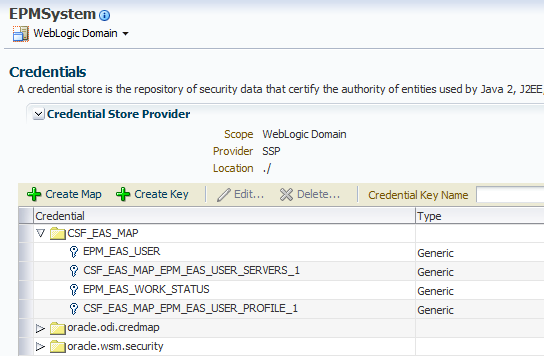
The credential wallet can be accessed in EM by right clicking the EPMsystem domain and selecting Security > Credentails.


Viewing the wallet using this method provides a much clearer vision and understanding on how the information is being stored.


The information is held in a structure which is based on maps and keys and each key can be a generic or password type.

“A credential is uniquely identified by a map name and a key name. Typically, the map name corresponds with the name of an application and all credentials with the same map name define a logical group of credentials, such as the credentials used by the application. All map names in a credential store must be distinct.”

All the EAS related keys are stored under the map CSF_EAS_MAP and all keys are of the generic type.

At the moment we only really have the same information as when using the orapki utility but the added advantage is using EM it is possible to edit the keys so let’s see what is in the EPM_EAS_USER key.


[<EASUser  id="1" username="admin" password="2l0fKnpc78AIKpmB/I08qA==" supervisor="true" fullName="" email="epmadmin@epmmail.com" roles="" external="true" isMigrated="true" identity="native://DN=cn=911,ou=People,dc=css,dc=hyperion,dc=com?USER" />]

Nice, the user is contained in the credential and looks to be in a similar format to the way it was stored in pre 11.1.2 versions

If there are multiple users then these will all be stored in the one credential for example:

[<EASUser id=”1”……/><EASUser id=2”…./>]


How about the server information, well this is slightly different and the key name relates to the EAS user id, so id=”1” would match to the key CSF_EAS_MAP_EPM_EAS_USER_SERVERS_1

Multiple EAS users mean multiple server keys and the same goes for profiles.

The key is stored differently to that of the users as it stores a property name and value.


Editing the Key provides the next stumbling block as it does not visibly display the server information though in reality you wouldn’t really want to have to go into EM and into each key to extract the details as it would be time consuming and is too manual for my liking.

Are there any other options available?  Well reading through the Oracle security (OPSS) documentation there is the following useful bit of information:

“Oracle Platform Security Services includes the Credential Store Framework (CSF), a set of APIs that applications can use to create, read, update, and manage credentials securely.”

So maybe by putting together a little bit of code it could help in displaying the EAS credentials.

Before I attempt this I thought it would be wise to configure the EAS web application to use a separate wallet file so there is no chance of screwing up the file which is shared by other products, this method is usually suggested when experiencing issues with users being lost from EAS because the wallet is being overwritten by other applications accessing and updating it.

To do this there are a couple of configuration files which should be copied from the within the domain to a new location for use with the new wallet file:

jps-config,xml  (JPS=Java Platform Security)

“This file can be seen as the lookup services registry for OPSS. Among these services are login modules, authentication providers, authorization policy providers, credential stores and auditing services.”


system-jazn-data.xml

“This is the default configuration file for file-based identity and policy stores in Oracle Platform Security.”


Next the new location of the jps-config.xml file has to be updated in the property which is passed into the EAS java web application.


If it is a Windows environment then registry is updated with the new value and for Unix the setCustomParamsEssbaseAdminServices.sh script.

Starting the EAS web application should automatically create a new wallet file.


Analysing the EAS application log (based on 11.1.2.3) shows that because the MAP and keys don’t yet exist they are created.


This can also be verified using the orapki utility


There will be no keys created for servers until a user logs into EAS and add an Essbase server.

On to the Java code to output the EAS credential information, now I am not going to go into depth about how it works as if you spend a little time researching it is not that difficult to do.

Please note I can’t confirm whether any of the following is supported and don’t hold me responsible for corrupting the wallet.

To be able to access the wallet a JPS configuration file is required providing the path to the wallet, I created a simple file which only contained details for the credential store.


The required security Java classes are all available under:
<MIDDLEWARE_HOME>\oracle_common\modules


Basically the path and filename for the JPS configuration file are passed in as an argument at runtime, the wallet file is then read and then all keys and credentials that are part of the EAS map are outputted.

As the wallet has just been created and no users have accessed EAS the following information is extracted.


Not very interesting yet so let’s login into EAS.


Run the code again:


This time the user credentials have been extracted from the wallet.

Now to add an Essbase server using "Single Sign On"


Run again:


Interesting by using the API method the server information is fully displayed.

Once the user has logged out of EAS the profile key is either updated or created.


How about adding an Essbase server without using "Single Sign On"


This time the server information is added to the same key.


The password doesn’t look to be encrypted either when adding a server in this way.

Extracting the information is great but I wanted to know if it was possible to add an Essbase server directly to the wallet, I dug around a bit and found the required Java classes then modified the code so that the user and server to be added are passed in as an argument.


The server looked to be successfully added to the wallet but the ultimate test was to log back into EAS and check.


Well there we have it the server is now available to the user and it could have easily been added for multiple users or if required a server could have been removed from specified users.

Hopefully this post has provided an insight to how EAS stores user information and gives you the power to report and manage this.

Monday, 6 January 2014

LCM 11.1.2.3 now supports planning essbase data (after patching)

A quick update from me as I noticed an 11.1.2.3 patch was recently released for Shared Services:

Patch 17307819: PSU 11.1.2.3.050


The patch mainly addresses the long awaited LCM backward compatibility to 11.1.1.4 but requires patch 11.1.1.4.500 to be applied which was also released at the same time.

I was looking through the list of defect fixes and the following caught my attention:

17348625 - Support is needed for the migration of Essbase data for Planning application using Lifecycle Management.

Over time LCM has matured into a well-established tool which does simplify the whole migration piece and is streets ahead of the world we used to live in, yes it does have some drawbacks and bugs but with each release it has improved and now supports the majority of EPM products.

LCM has supported Essbase data migration since 11.1.2.0 but this was for pure Essbase applications and the functionality has been missing for planning applications until now.

The patch requires applying on all servers in an EPM environment and updates not only Shared Services but EPMA and Planning as well.

Once applied new Essbase data artifacts are available for planning application in Shared Services.


The data migration supports both BSO and ASO planning applications.


The BSO export is a full text data export in column format, the ASO export is of course level 0 (not in column format)


 The export is the same as using LCM with Essbase applications except with planning the txt file extension is included while with essbase there is no file extension though it is still text format.

If the LCM planning export includes the Essbaase data artifact then the output content will not be zipped and be in exploded format as a folder.

If the planning essbase databases are large in size then be aware the export could take a while to complete and the database will be in read-only mode while the export is active.

It is worth understanding how the export is processed as it could potentially cause problems.

The export looks to be executed from the planning server and at first is exported to the
<EPM_ORACLE_INSTANCE>\tmp directory


 The export file is then renamed and moved to the LCM import/export directory.

If the export is large then this could impact the available space on the epm instance drive and add additional network traffic as the file is moved around.

It is possible to change the location of the tmp directory by updating java temporary directory for the planning web application server.

On windows this can be achieved by updating the registry.


For Unix type deployments then setCustomParamsPlanning.sh can be updated.

I did also notice a slight issue if the account running the planning managed server does not have access to the LCM import/export directory (in my case the directory was on a share) then the LCM process will complete successfully but the LCM Essbase Data folder will not exist, the data export will still run to the temporay directory but that is as far as it goes even though it does not fail, this does not happen for any of the other planning artifacts and did throw me for a while but updating the permissions resolved the problem.

When importing the data using LCM the data is not cleared out and it is the equivalent of importing with overwrite values.


There is no option to clear the data which would be nice and I have always thought it would be great if there was an option to completely clear out the target planning application before running an LCM import, maybe one for the future?

If importing to a planning ASO database then any aggregations will need to be run as this is not handled by LCM.

I did test using the EPM clone utility which I blogged about here and can confirm once patched it does automatically export/import the planning data.